9to5mac.com/2023/07/28/elon-just-xd-your-bird-but-heres-how-to-bring-back-the-twitter-app-icon-and-name/
Elon just X’d your bird, but here’s how to bring back the Twitter app icon and name
Ian Zelbo | Jul 28 2023 – 1:45 pm PT

It has been a wild week for Twitter… ehm X. Elon Musk spontaneously announced on Saturday that Twitter would get a new logo and name. He then reached out to his followers and asked them to make a logo for his new X app, “the everything app,” and in less than 20 minutes, the logo was picked, and the next day, it began rolling out to Twitter affiliated accounts.
After the gradual rollout this week, today, Twitter’s iOS app has been given the “X” treatment, and the Twitter bird we all loved is nowhere to be found.
While we can’t adjust the app’s user interface, we can use a clever trick to change the app’s icon and name back to the Twitter we all know and love.
The process
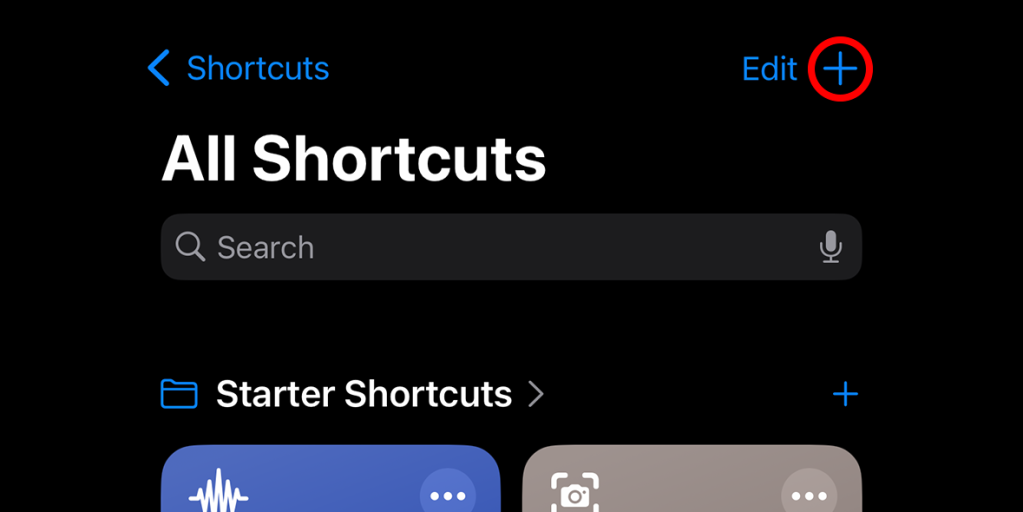
First, you need to open the Shortcuts app on your iPhone
Press the + button on the top right and give your shortcut a name – “Twitter”
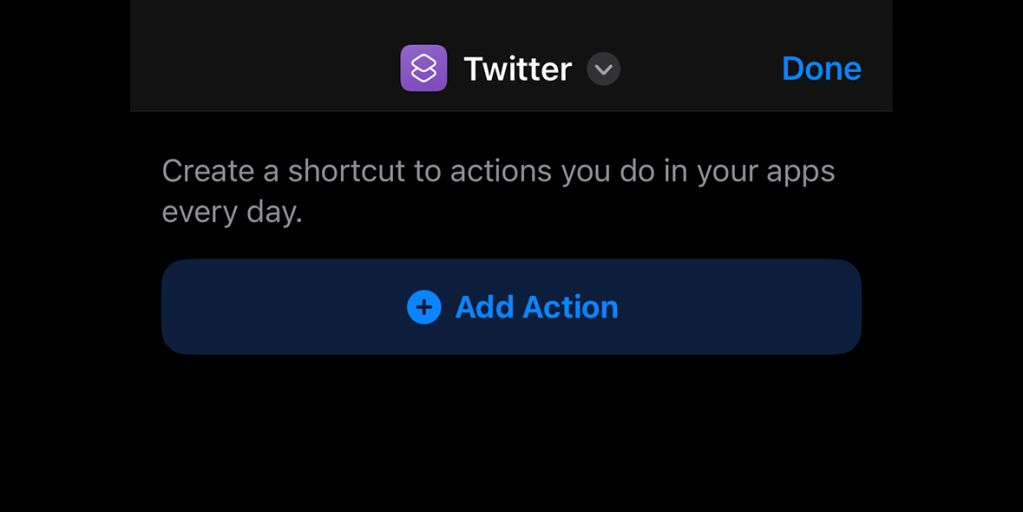
Next, you’re going to press “Add Action” and search for “Open App”
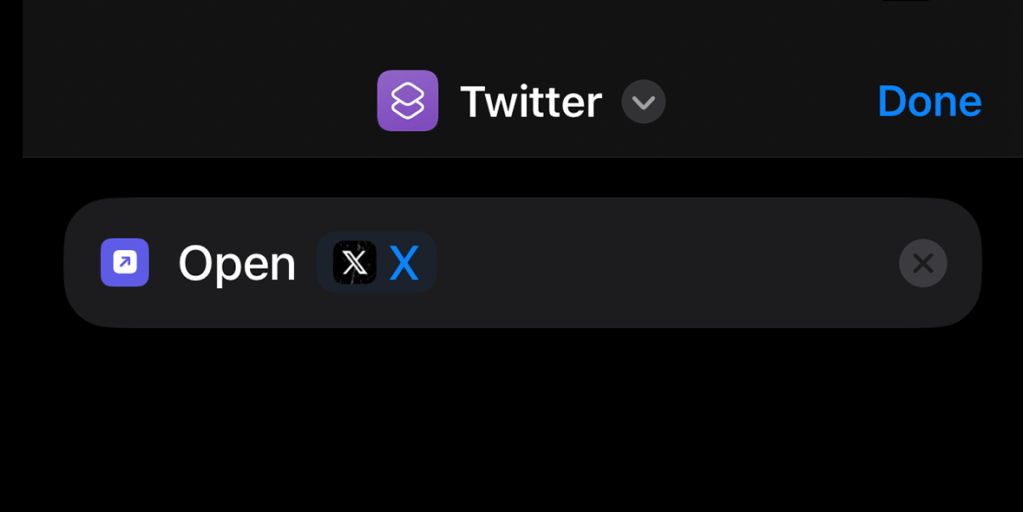
Tap to choose which app you want to open (X in this case)
Select X and then press the arrow on the top
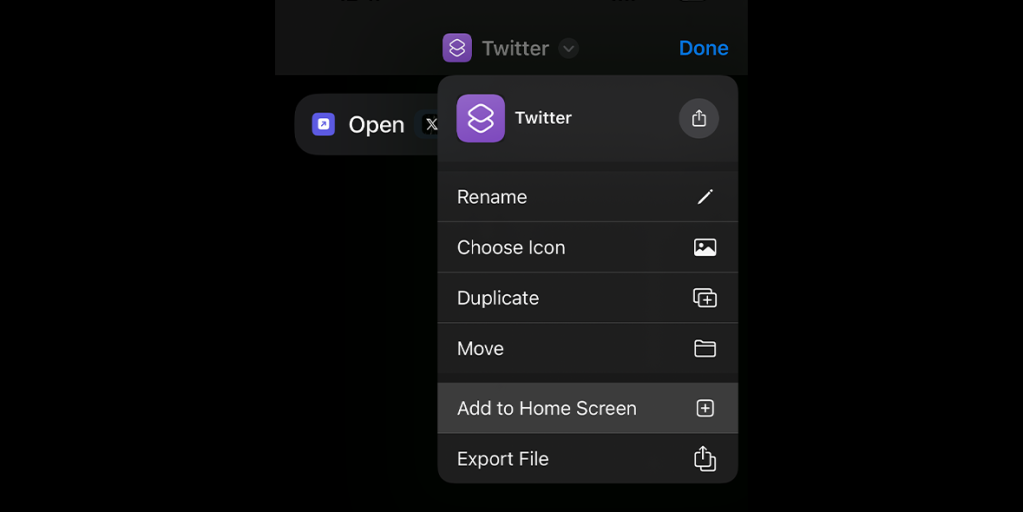
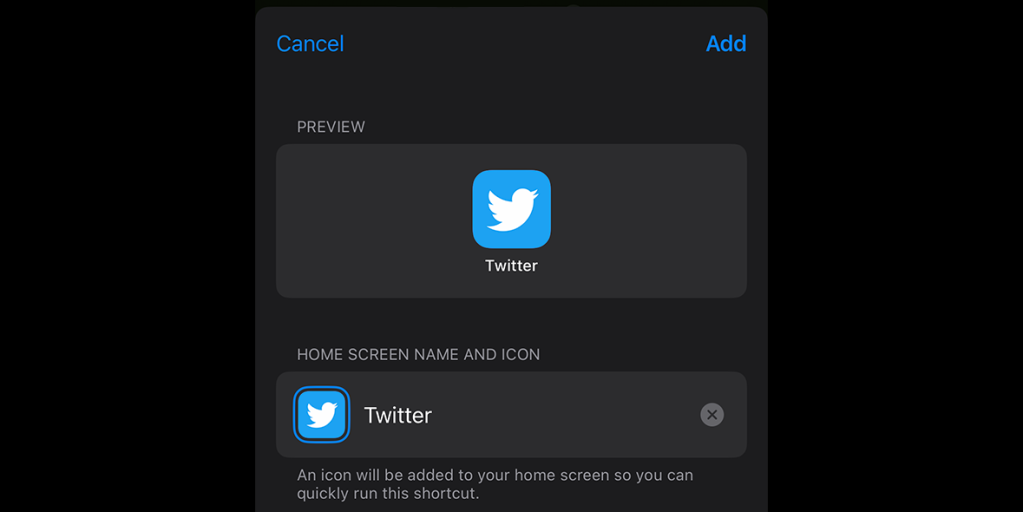
Press on “Add to Home Screen” tap on the icon and select “Choose Photo”
Top comment by Kevin Horton
The appropriate icon would be brown and steaming
Select the photo you want, we have included the Twitter iOS icon below to make it easier for you, but you can set it to any image you want
Press “Add” and you’re done!
Congratulations, you have now brought the Twitter bird back to life.

Add 9to5Mac to your Google News feed.
You’re reading 9to5Mac — experts who break news about Apple and its surrounding ecosystem, day after day. Be sure to check out our homepage for all the latest news, and follow 9to5Mac on Twitter, Facebook, and LinkedIn to stay in the loop. Don’t know where to start? Check out our exclusive stories, reviews, how-tos, and subscribe to our YouTube channel
 Abycats' Thoughts